Setting Up AdviserGPT
Reset your Password & Sign in
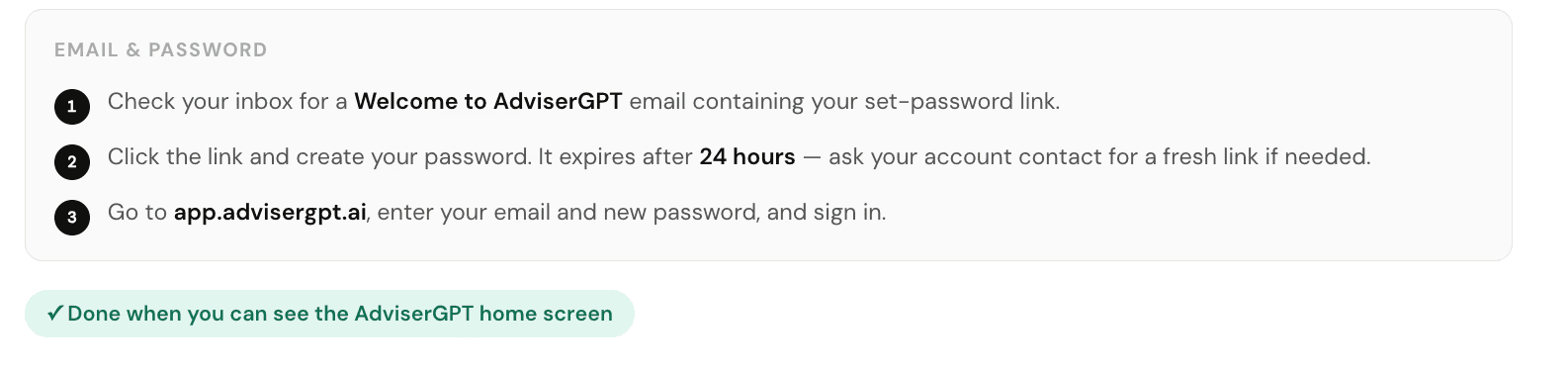
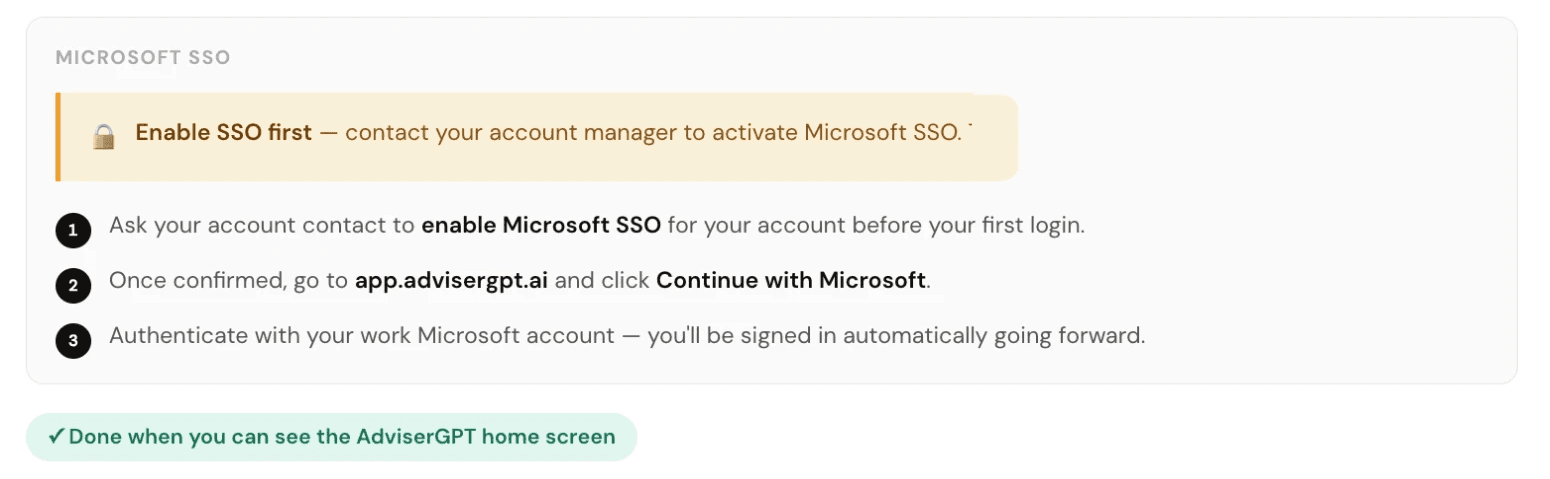
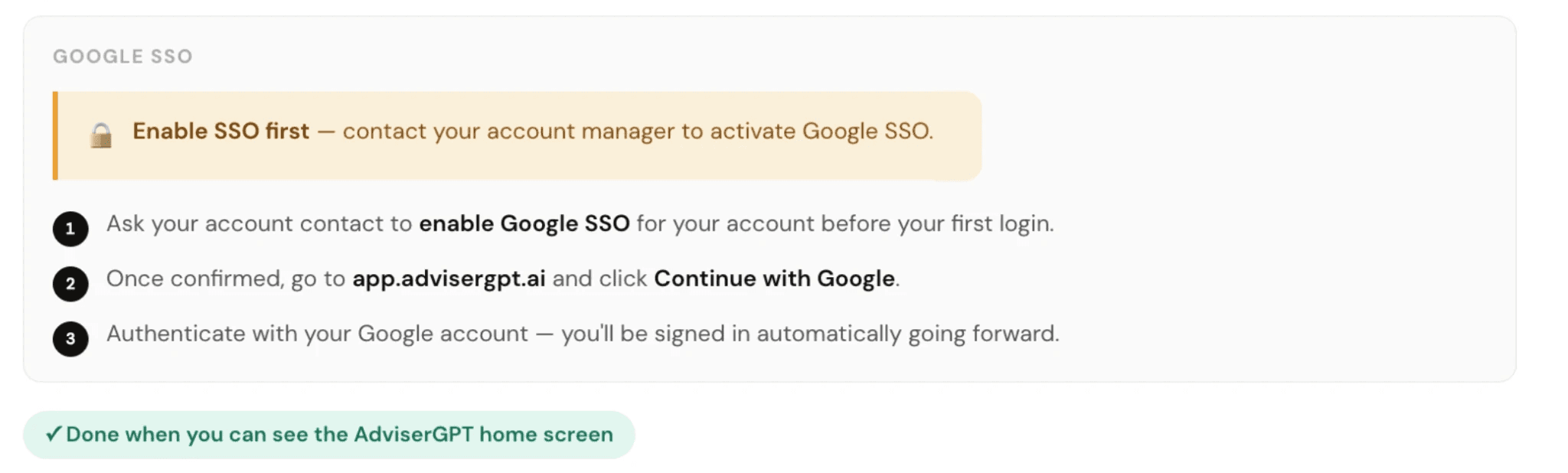
You'll receive login credentials by email from the AdviserGPT team. Follow the link to create your password, then choose your preferred sign-in method, either Single Sign On or Password. When your firm Admin turns-on Single Sign On via Microsoft or Google in the Firm Settings console, your users can no longer enter a password. Your Admin manages billing, team members, and the preferred SSO.
Sign in method
Email & Password
Microsoft SSO
Google SSO
Install the Plug-ins
Bring AdviserGPT into the tools you already use—Microsoft Word, Excel, Edge, and Google Chrome. Answer RFPs without ever switching apps.
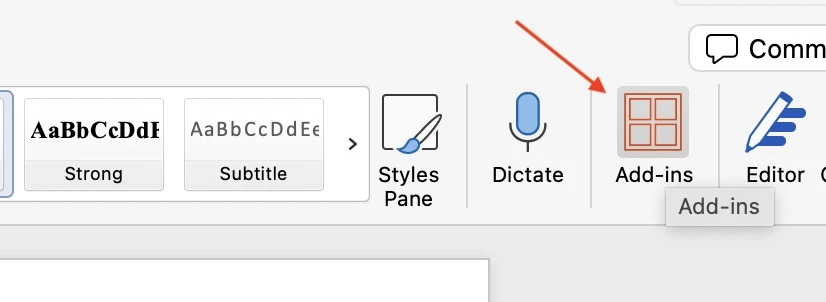
IT approval may be required. If you can't find the add-in or get a permission error, contact your IT team to approve "AdviserGPT" in the Microsoft admin center. Usually takes 1 business day.
Can't find it in Add-ins? Install directly from the Microsoft AppSource Marketplace.
You'll know it worked when the AdviserGPT button appears in the Word ribbon and you can sign in from inside Word.